Bill Capture scanning guidelines
Last updated February 12, 2026
Legacy Bill Capture documentation is here.
Follow these guidelines when scanning bills. If you are unable to follow these guidelines, contact us to discuss other Bill Capture services (for example, web download or mail redirect).
Incorrectly scanned document(s) are not processed. They are removed from the batch and emailed to you as a Problematic Scan notice.
Scanner settings
If your scanner allows, set the following options.
| Page Size: | Auto Detect (if unavailable, select 8.5 X 11) |
| Color Mode: | Black and White or Auto Color |
| Duplex Mode: | Duplex mode for documents having pertinent information on BOTH sides of the paper |
| Simplex Mode: | Simplex mode for documents having pertinent information on ONE side of the paper |
| Resolution/DPI: | 300 DPI is the minimum |
| Output: | PDF or multi-page TIFF |
| Orientation: | Select Auto Text Orientation Detection if available. |
| Zooming/Scaling: | Do not turn on |
Scanning instructions
Scan every page
Scan every page of your utility bill. Do not skip pages, even if they seem irrelevant. Summary bills should include the summary page(s) and pages for every sub-account bill.
When possible, scan each bill into an individual bill image file and then compress multiple bill image files into a zip file. Do not exceed 400 pages in an individual bill file/PDF. Do not include a zip file within a zip file; Bill Capture rejects the batch.
File name
Do not include periods or commas in PDF or electronic file names. Exception: The period indicating the file extension (like .pdf) is fine. Each PDF or electronic file in a batch must have a unique name.
Folders within folders
Do not place scanned bills in a folder within another folder in the .zip file.
Bill organization
If you cannot scan and save each bill individually, follow these guidelines:
- Organize scanned bills by vendor, a single PDF should contain bills from only one vendor.
- Organize scanned bills by page count. In other words, all one page bills together, two page bills together, and so on.
- Do not mix both single and duplex bills together in the same PDF.
Scanner setup
Use a stand-alone scanner whenever possible as it offers more options than a multi-function printer/scanner.
Scan each document with the top of the document up against the feed rollers.
- Do not scan documents sideways (for example, long edge first) unless Auto Text Orientation Detection or its equivalent option is enabled.
- Orient every page right-side-up and not sideways or upside-down.
- Align images from top to bottom and not skewed or at an angle.
Odd size bills
For post-card sized bills, scan one bill per page.
- Do not combine multiple postcards onto a single page, even if space allows.
PDF rules
Bill Capture cannot process password-protected PDFs. Remember to remove all password protection before submitting.
Do not place multiple files into a PDF Portfolio as they require manual intervention to break out the original files.
Marking bills
Do not make pen marks on bills, especially over critical pieces of billing information.
- If marking bills is unavoidable, use a yellow highlighter (many other highlighter colors–such as blue or pink–are converted to black during processing).
- The Bill Capture process does not preserve non-vendor electronic markings.
Don't mix bills
Do not upload a zip file with a mix of live and historical bills. If you upload a zip file with a mix of live and historical bills, the live bills take longer to process.
Scanning and uploading instructions for historical bills
Follow the Scanning Instructions referenced above.
Each historical zip file should only contain individual bills or PDFs from the same month and year.
Include the month and year in the name of the file.
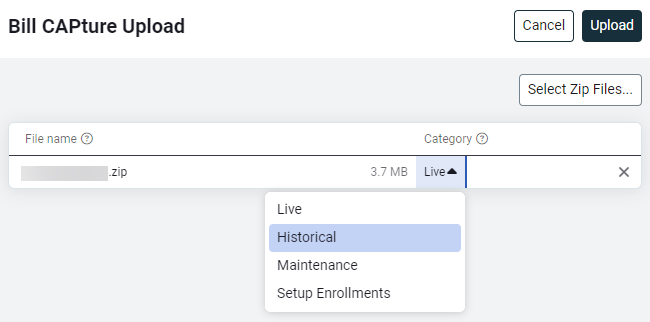
Upload zip files in chronological order, starting with the earliest month and year in the first zip file. Select Historical when uploading the zip file.
When the vendor changes an account number, Bill Capture treats the bill(s) as new meter enrollment(s) unless you immediately notify Bill Capture. You need to provide a spreadsheet cross-referencing the old account number(s) to the new account number(s).