Rate schedule overview
Last updated March 20, 2026
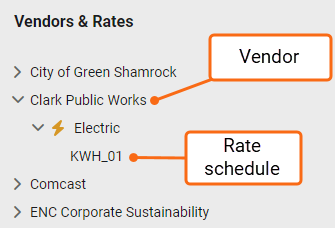
A rate schedule defines how charges are calculated for a meter. It typically matches the rate shown on your vendor's utility bill and is managed in the Vendors and Rates module. Because rates change over time, EnergyCAP uses rate versions to track those changes without losing historical billing data.
Key details
- Defines billing rules used to calculate costs for a meter.
- Typically matches the rate shown on the vendor's utility bill.
- Located in the Vendors and Rates module.
- Only one rate schedule can be assigned per meter.
- Supports chargebacks by applying:
- The correct unit cost to the assigned submeter on the generated bill.
Rate version
A rate version helps you track rate schedule changes over time.
When to create a new rate schedule version
Create a new rate schedule if:
- The vendor has changed and a matching rate is not available.
- Multiple accounts use the same rate and proposed changes only affect a subset of accounts.
Create a new rate version if:
- The existing vendor is making a rate change affecting all accounts.
- Keeping the old rate for entering historical bills is important.
Steps to create a new rate schedule version
- Go to the Properties tab of the rate schedule.
- Copy the rate schedule version and enter the effective date.

- Edit the Use and Demand Charges and add lines if needed.

Rate version and chargebacks
The chargeback engine uses the rate with the effective date matching the start date of the bill being created.
When configuring chargebacks to use the rate schedule, the meter and account line items are only added one time, either in the rate schedule version or in the chargeback configuration.
Create a rate schedule
You can manage rate schedules:
Assign a new rate schedule to a meter
You can assign a new rate schedule to the meter on the meter Properties tab.
- Expand Linked Accounts.
- Expand the account.
- Edit the rate schedule.

- Add a row above.
- Choose the new rate from the drop-down.
- Set an effective date.