Energy project overview
Last updated June 24, 2026
Use the Energy Projects tab to track summary data for energy initiatives.
There is no report or export available for energy projects. Project data can only be viewed within the Energy Projects tab in EnergyCAP.
- Enter project data at the building level.
- Project details are subtotaled at the organization level.
- The tab is hidden if no projects exist.
Important notes
- This feature is for tracking impact, not full project management.
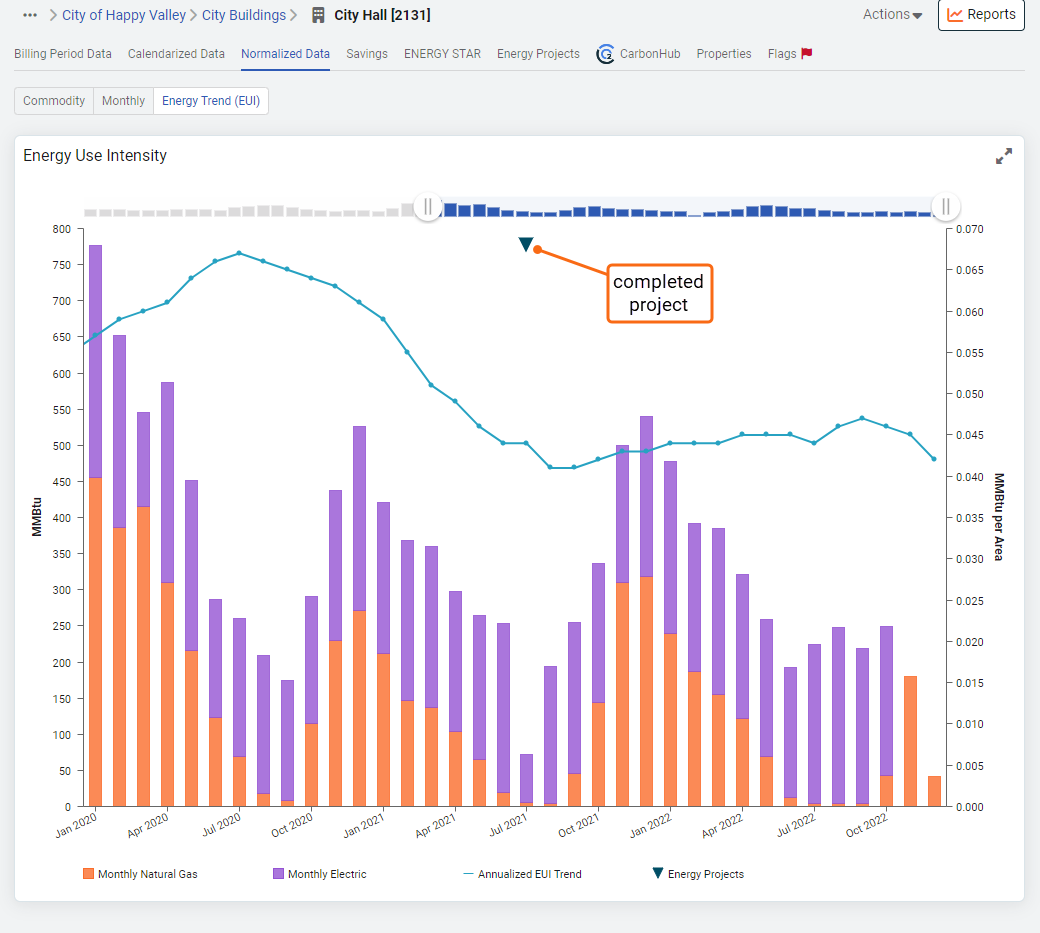
- Completed projects are shown on Energy Use Intensity (EUI) charts with a special symbol.
- Each project must have a unique name.
Energy Projects tab
Project tracking information is subtotaled at the organizational level. If project tracking information is not entered, this tab is hidden for organizations.
How to add an energy project
You can add energy projects at the building level. Here's how:
- Go to the Sites and Meters module.
- Select the building where you want to add the project.
- Click on the Energy Projects tab.
- In the Energy Projects table, click New Project.
- Fill out the project form with the required details.
- Click Save.

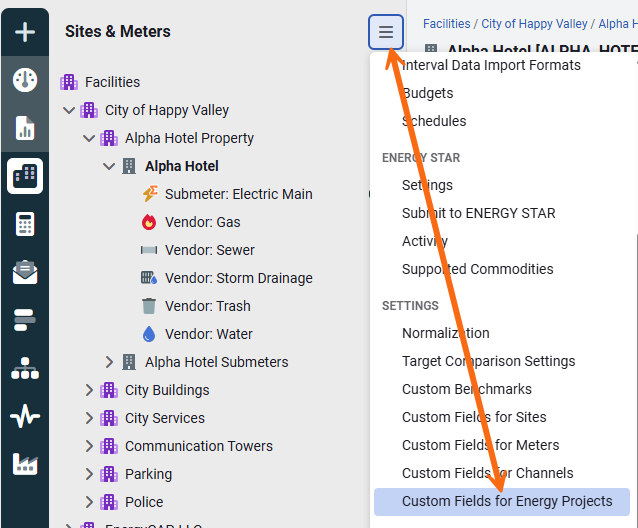
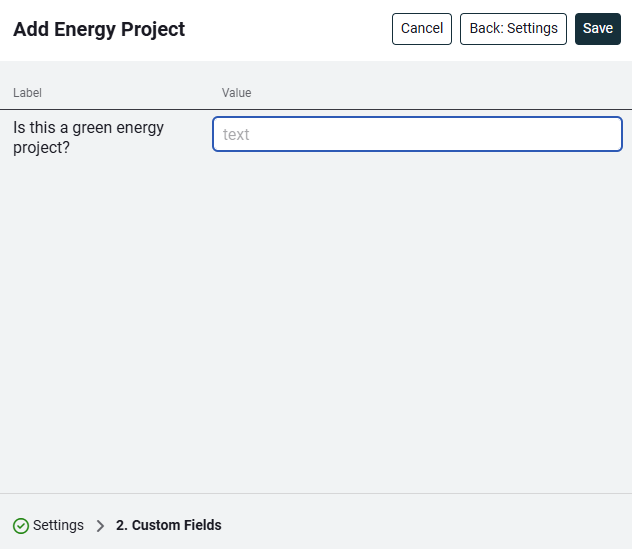
When creating a new project, you are only presented with step 2 if you have defined your custom fields. Use the module menu in the Sites and Meters hierarchy to define project custom fields.
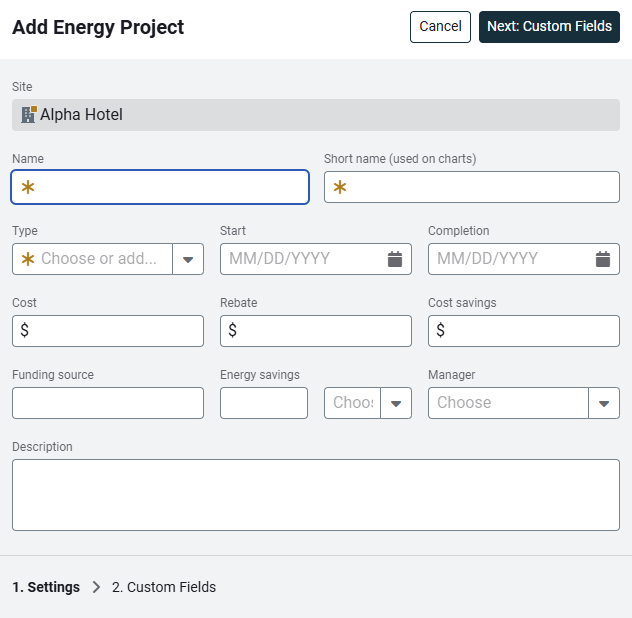
Add Energy Project form
- Select the building where you want to add the energy project.
- Click New Project.
- Give the project a name. (required)
- Add a short name that is used on charts. (required)
- Select the type of project from the drop-down; this can be changed later. (required) You can add new types with the drop-down menu. To delete a project type open a support ticket by emailing encsupport@energycap.com.
- Select the Expected impact of the project. (positive, negative, unknown) (optional)
- Enter the dates for the project. (optional)
- Enter the cost, rebate amount, and cost savings. (optional)
- Enter the funding source, energy savings, and project manager. (optional)
- Add a description for the project. (optional)
- If any custom fields have been defined you can enter them in the second dialog.
- Save the project.
Completed project
When a project has a completion date entered, the completed project is marked on the EUI chart. Hover over the marker to see the project details.