Manage custom units
Last updated June 24, 2026
Download
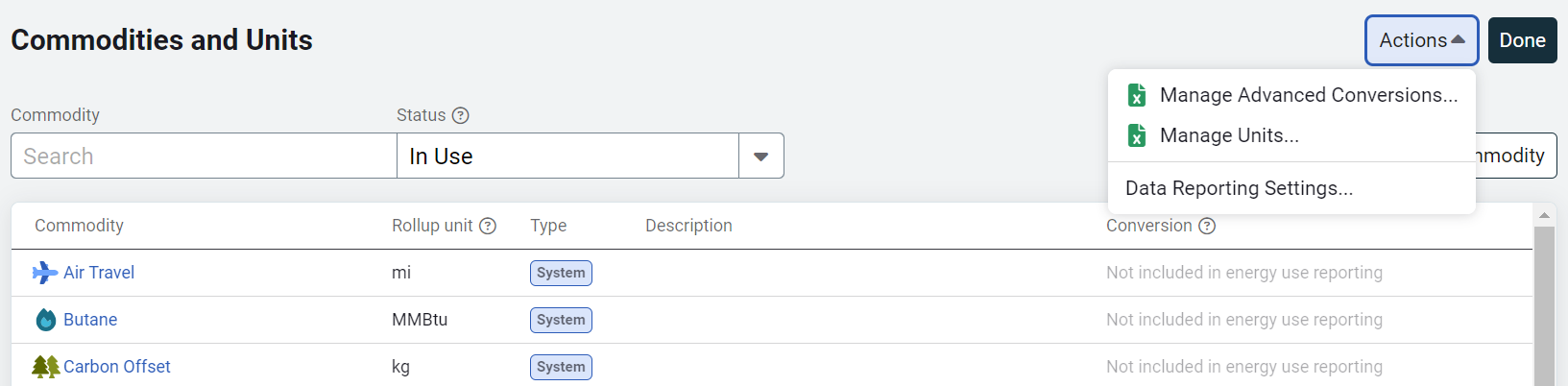
- In the Settings menu, select Commodities and Units.
- Click Actions.
- Select Manage Units.
- Download the spreadsheet from the dialog.
What it's for
Use the Basic Units Conversions spreadsheet to:
- Add custom units to the system.
- Define how each custom unit converts to a specific unit category.
- View all system-provided units and custom created units and conversions.
Limitations
❌ You cannot create custom units for the Temperature or Money unit categories.
Spreadsheet details
- Each column header has help text in the row below.
- Required fields are clearly marked.
- Provide correct unit category and conversion logic for each new unit.
What happens on upload
- Only rows without errors are processed.
- If any row contains an error:
- The row is skipped.
- An error file is generated for download.
- Problematic cells are highlighted in red.
Spreadsheet tabs
- DataEntry – this tab is where you add custom units
- System units – a read-only tab of all system units in the application. You can view the standard conversion factors here.
Spreadsheet columns
|
Column |
Rules |
|
| Unit ID | Read-only field | |
| Unit Name |
Enter the name of the new unit. |
|
| Unit Code | Enter a unique code. | |
| Unit Symbol | Enter a unique unit symbol. | |
| Unit Category and Primary Unit | Select from the drop-down. The category unit will automatically populate. | |
| Conversion to Primary Unit for the selected category | This is the multiplier | |
| Delete unit | Select DELETE from the drop-down to remove a unit. |