Bill Capture problem files
Last updated September 18, 2026
Problem Files
When EnergyCAP detects an issue with an uploaded file in Bill Capture, the file appears in the Problem Files area. These files require action before they can be processed.
Problem files help you quickly identify and resolve issues that prevent bills from importing.
Where to find problem files
You can identify problem files in two ways:
- Uploads tab – A message or indicator shows when at least one file in the upload list has a problem.
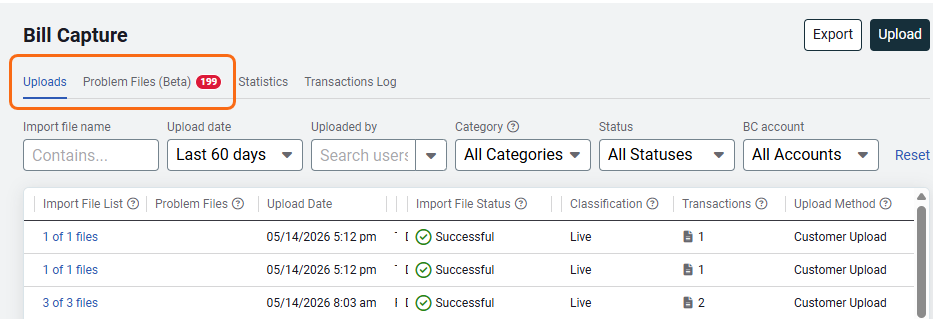
- Problem Files tab – A dedicated tab that lists files that need attention.
The Problem Files tab appears next to the Uploads tab in the Bill Capture section of the Bills module and includes a badge that indicates when problems are present.
Common reasons a file becomes a problem file
A file may appear in the Problem Files list for several reasons, including:
- Password protected – The system cannot read files that require a password.
- Corrupt file – The file is damaged and cannot be processed.
- Duplicate file – The file appears to be a potential duplicate of an existing bill. See Duplicate bill detection below for details on how to review and resolve duplicates. Duplicates are only detected for PDF imports.
- Unsupported file type – The file format is not supported.
- Processing failure – The upload did not complete successfully (for example, due to a lost internet connection).
If possible, the system displays the file preview so you can review the issue.

Review problem files
The Problem Files tab shows a list of files that require action. The list includes:
- The file name
- The problem detected
- Available actions
You can filter the list to focus on specific problems.
Within the Problem Files area, files are organized into two sections: Actions Needed, where you can quickly address outstanding issues, and Action Taken History, which tracks previously resolved items.
Actions you can take
Depending on the problem detected, you may see one or more of the following actions.
-
Upload replacement file
- Replace the file with a corrected version.
- Use this option when the file is corrupt, incomplete, or otherwise unusable.
- The replacement file is processed as a new batch upload, not added to the original batch.
-
Process anyway
- Process the file despite the detected issue.
- This option may be available for some problems, such as duplicates.
-
Ignore this file
- Remove the file from the processing queue without replacing it.
- Use this option if the file is not needed.
What happens after you take action
After you resolve a problem file:
- The file is removed from the Problem Files list.
- The upload status updates in the Uploads area.
- If the file is replaced or processed, it appears as a new upload batch.
EnergyCAP records the action history, including:
- When the issue was resolved
- Who resolved it
- What action was taken (for example, replaced, processed anyway, or ignored)
- Name of the replacement file
This history helps track how problem files were handled, including decisions made on duplicate files.
Duplicate bill detection
EnergyCAP automatically detects potential duplicate bills during batch uploads and surfaces them for review before they are processed.
How duplicates are detected
Only Bill Capture PDF files are reviewed for duplicates. During a batch upload, each incoming PDF file is checked against existing bills on the same account in two places:
- Checks the processing pipeline for a match (matches that haven't yet become bills in EnergyCAP).
- Checks your EnergyCAP database for a matching bill.
A bill is flagged as a potential duplicate when all of the following match an existing bill:
- Account—Account numbers match
- Total Cost—Bill amounts are identical
- Service Dates—Start and end dates match
- Invoice Number—Matches when present
Flagged bills do not interrupt the upload process. They appear in the Problem Files tab for review.
Reviewing a potential duplicate
When a potential duplicate is identified, you see a side-by-side comparison of the incoming bill (on the right) and the existing bill (on the left). The existing bill shows its current status so you know where it is in the workflow. From this view you can:
- Process Anyway—Accept the incoming bill and continue processing it.
- Ignore—Discard the incoming bill and keep the existing one.
If the existing bill shows Upload in Progress, the bill has arrived in the Bill Capture database but hasn't yet been exported to EnergyCAP. That's why you may not find it when you search in your EnergyCAP database.
When the existing bill shows Upload in Progress, choose Ignore for the incoming file. Don't choose Process Anyway—the in-progress bill is on its way through, and processing the incoming file would create a true duplicate once it finishes.
Potential duplicates—including ignored files—do not count as Bill Capture transactions because they are caught before processing begins.
How the duplicate flag is applied
When EnergyCAP detects a potential duplicate, only the incoming file is tagged. The existing bill it matched against is not flagged or tagged as a duplicate.
- If you choose Process Anyway, the incoming bill is created and carries the duplicate flag. The original bill stays unflagged.
- If you choose Ignore, the incoming file is discarded and no flag is created on either bill.
- The original bill can later be tagged as a duplicate—but only if you edit it. Editing reruns the audit against existing bills, so a previously unflagged original can become flagged after an edit.
How Bill Capture duplicate detection differs from the bill audit
EnergyCAP has two separate ways to catch duplicate bills—one in the main application and one during Bill Capture upload. They use different matching rules.
| Duplicate Bills audit (in the application) | Bill Capture duplicate detection (during upload) | |
| Account Number | Must match | Must match |
| Total cost | Must match | Must match |
| Service dates | Start and end date within ±1 day of an existing bill | Exact match required |
| Invoice number | Not checked—a separate Repeat Invoice Number audit handles this | Checked when present |
| Vendor | Inherently included (lookup uses account ID, which is vendor-specific) | Not factored in (lookup uses account code, which is only unique per vendor, not across all vendors) |
Key points to remember
- If you receive an email notification about a problem file in a batch, you will need to resolve the problem file, then monitor the batch and close it manually.
- Problem files do not block the rest of the batch. Other files in the same upload continue to process normally.
- Problem files—including duplicates—do not count as Bill Capture transactions. They are caught before processing begins, so you are not charged for them.
- Upload replacement files as direct PDFs not as zip files.
- Replacement files are processed as a new batch, not the original.
- File previews are not available for corrupt or password-protected files.
- You can filter the list to find files with the same problem type and resolve them.
Incorrectly scanned files
If a file was not scanned correctly—for example, it is blurry, has missing pages, or does not follow the scanning guidelines—it cannot be processed. These files are surfaced as problem files and may also be sent to you by email with an error explanation and the affected batch code.
To resolve an incorrectly scanned file, upload the corrected version as a new batch. Do not add it back to the original batch.
For multi-bill PDFs and summary bills, if only some bills in the file are rejected, upload only the rejected bills. Do not re-upload the entire file—doing so creates duplicate bills in EnergyCAP.
If every file in a batch fails scanning, the batch status stays Processing indefinitely because there is nothing to process. Contact EnergyCAP support to have the batch removed from your upload history.
Bulk actions
The Problem Files tab supports bulk actions so you can apply the same action to multiple files at once.
To use bulk actions, select multiple files on the current page and choose an action.